Step 1
Sign up and choose Computer, Phone & Electronics Repair
Pick Computer, Phone & Electronics Repair when you sign up. You start with a computer and phone repair shop's price list — diagnosis & quote, laptop screen replacement, phone screen replacement, battery replacement and more — which you edit to your own prices under Settings → Services.
Add each technician under Settings → Technicians so every job can be assigned to whoever is doing it.
Step 2
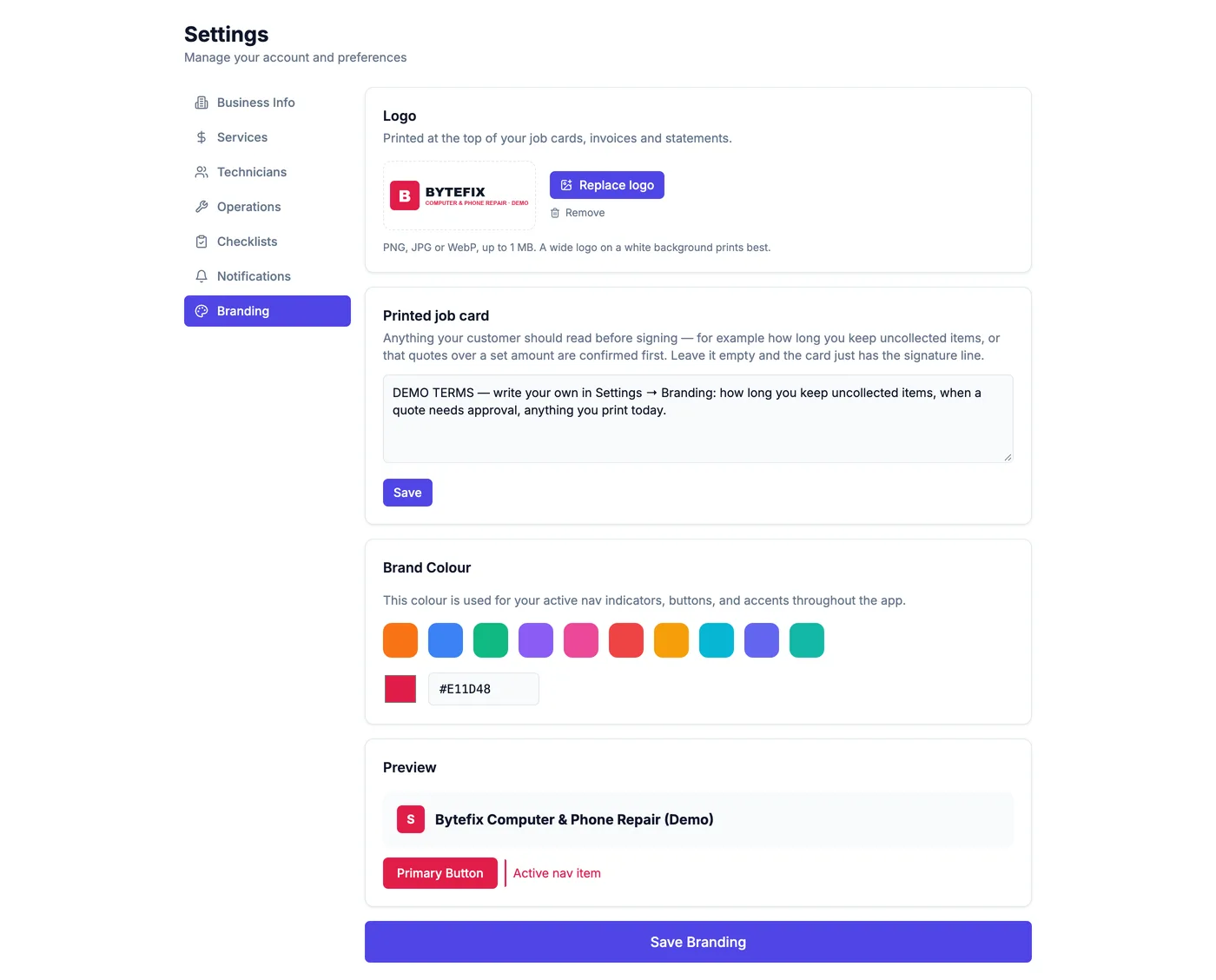
Put your logo on the job card
Under Settings → Branding, upload your logo and write the terms you want above the customer's signature. Your logo then appears on every printed job card, invoice and statement.
Step 3
Bring your customers across
Under Customers → Import, upload your customer list as a spreadsheet (CSV). Name first; phone, email and address are picked up if they are there.
Step 4
Book a job in
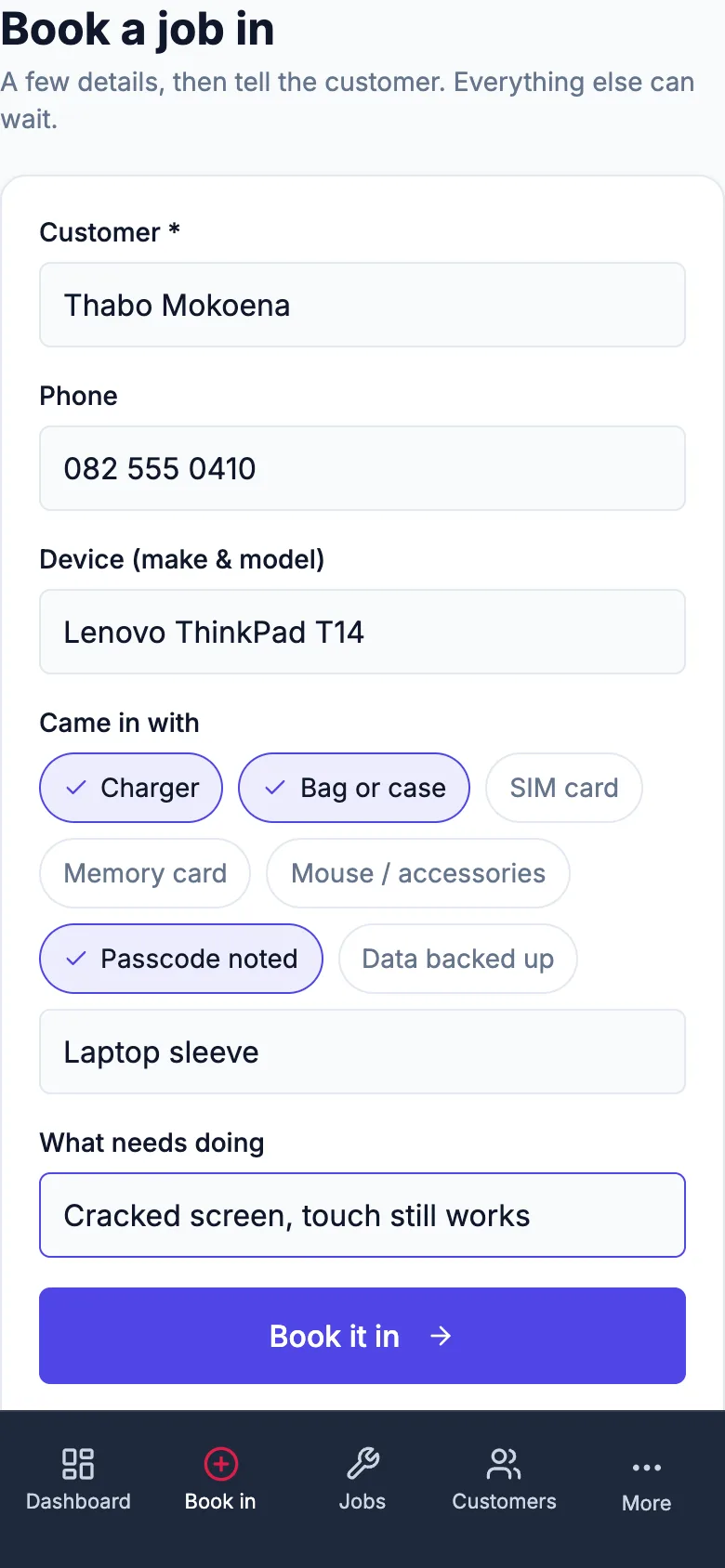
Book a job in asks for the customer, their number, the device and what needs doing — a cracked screen, a battery or a virus clean-up, for example. It takes under a minute at the counter.
Straight after, one tap opens WhatsApp from your own number with the confirmation already written.
Step 5
Print the job card
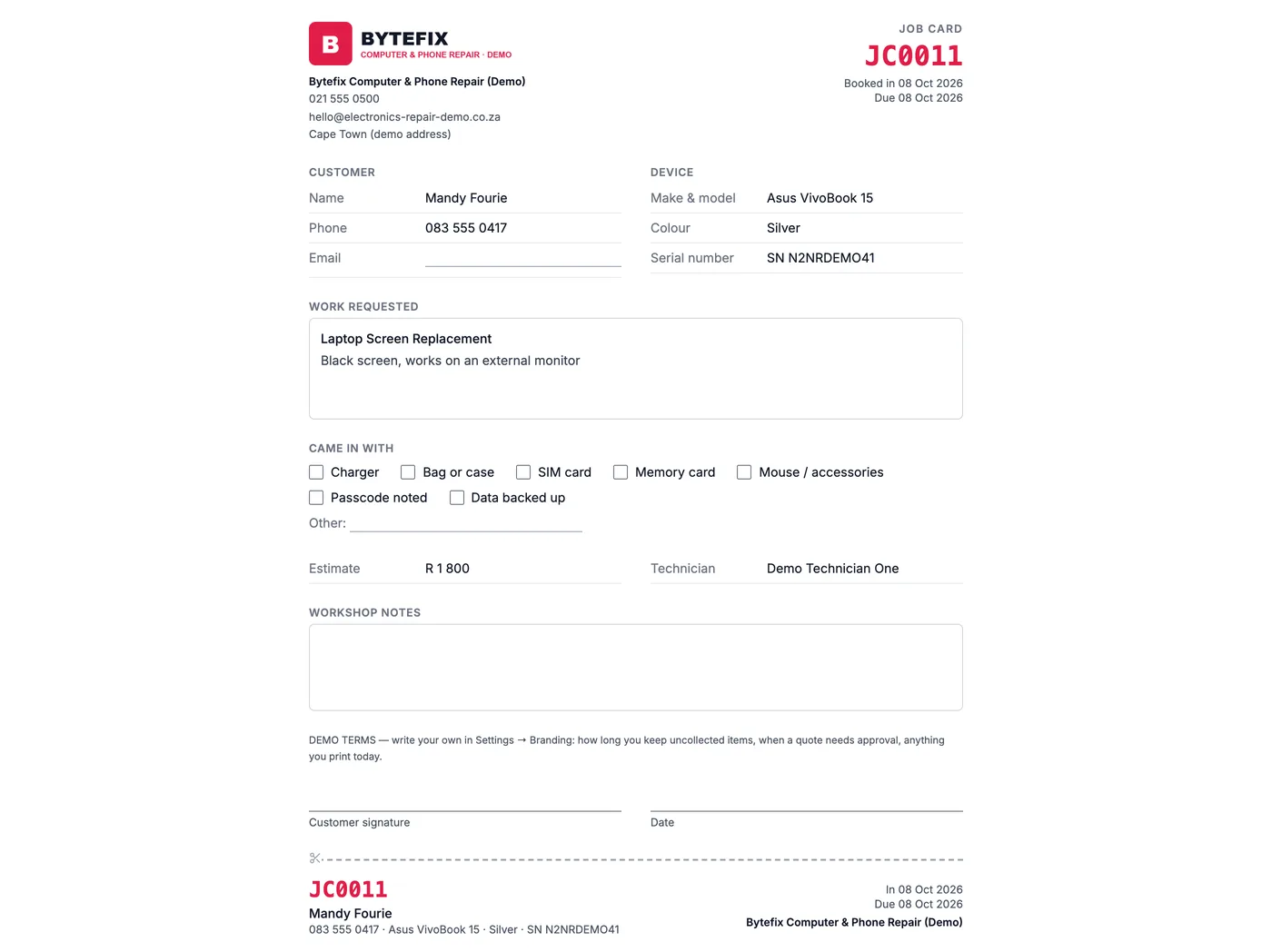
Print job card gives an A4 card with your logo, the customer, the device (make, model and serial number), the work requested, the estimate and a signature line — with a tear-off tag carrying the job number.
Step 6
Move each job through, and tell the customer
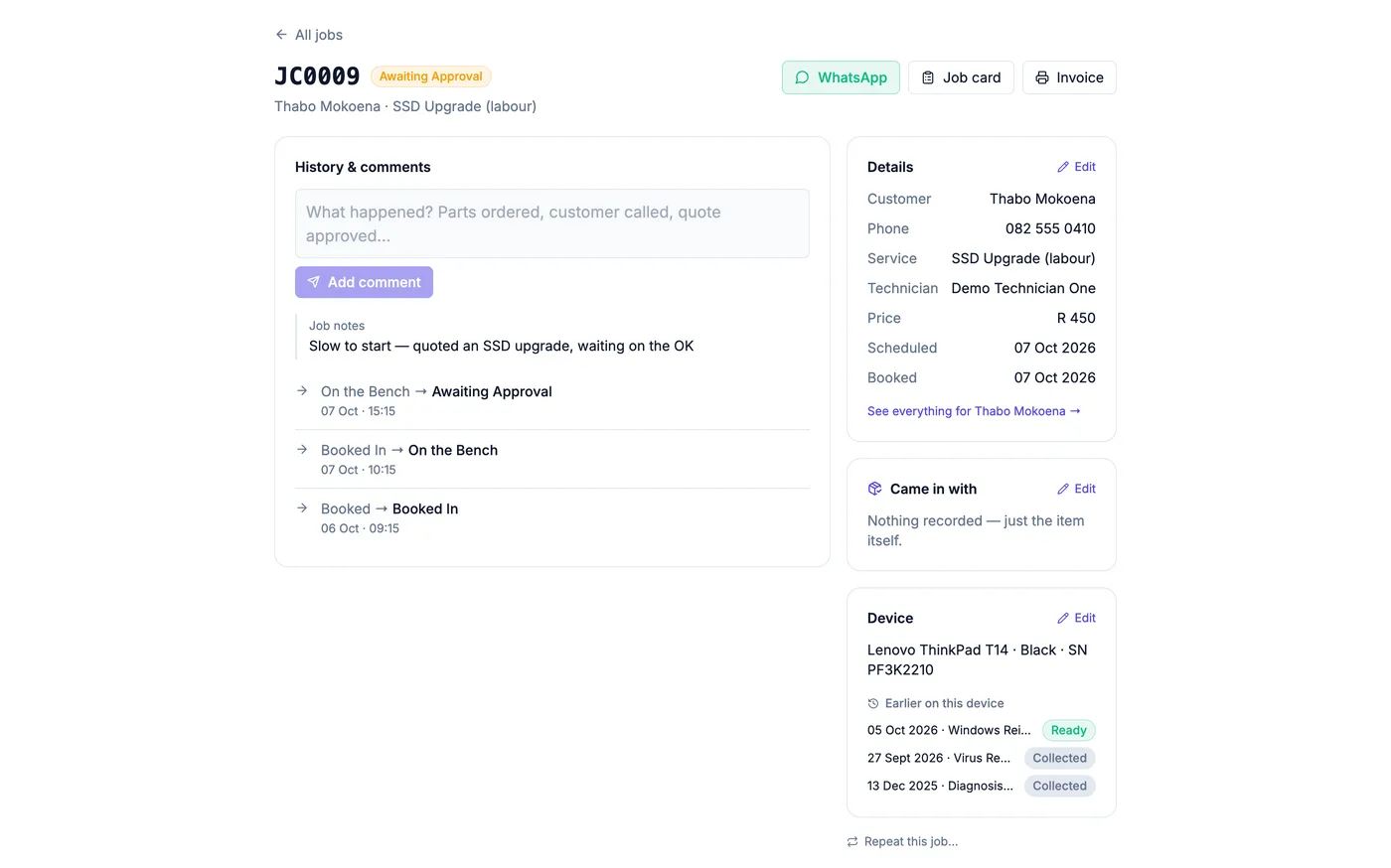
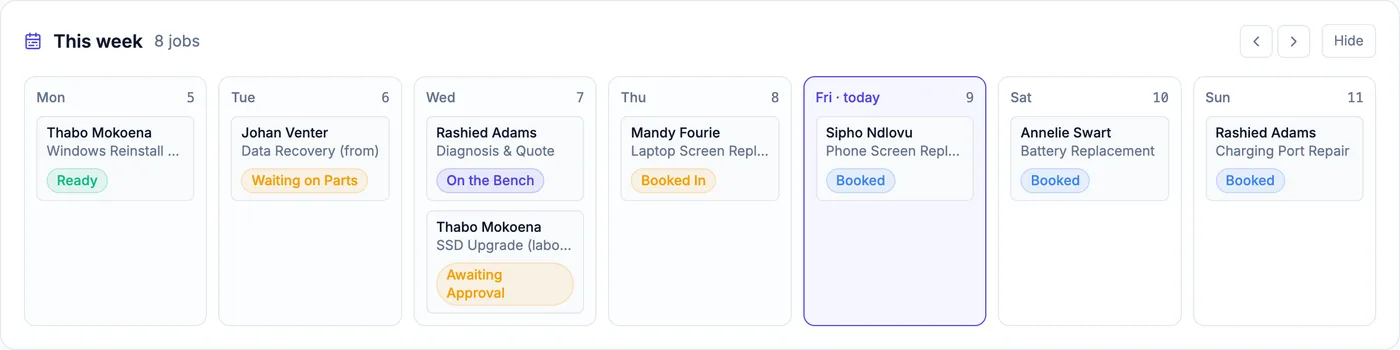
Jobs move Booked → Booked In → On the Bench → Ready → Collected, in the words your trade uses. The week view shows what is on each day; when a job is done you are offered a one-tap WhatsApp to the customer.
Step 7
A history for every device
Every job is kept against the device itself. Open any job and you see everything done to that device before; open a customer and you see each of their devices and when each was last in.