Step 1
Sign up and choose Medical & Lab Equipment
Pick Medical & Lab Equipment when you sign up. You start with a medical equipment service company's price list — assessment & fault report, preventative maintenance visit, oxygen concentrator service, calibration & certificate and more — which you edit to your own prices under Settings → Services.
Add each biomedical technician under Settings → Technicians so every job can be assigned to whoever is doing it.
Step 2
Put your logo on the job card
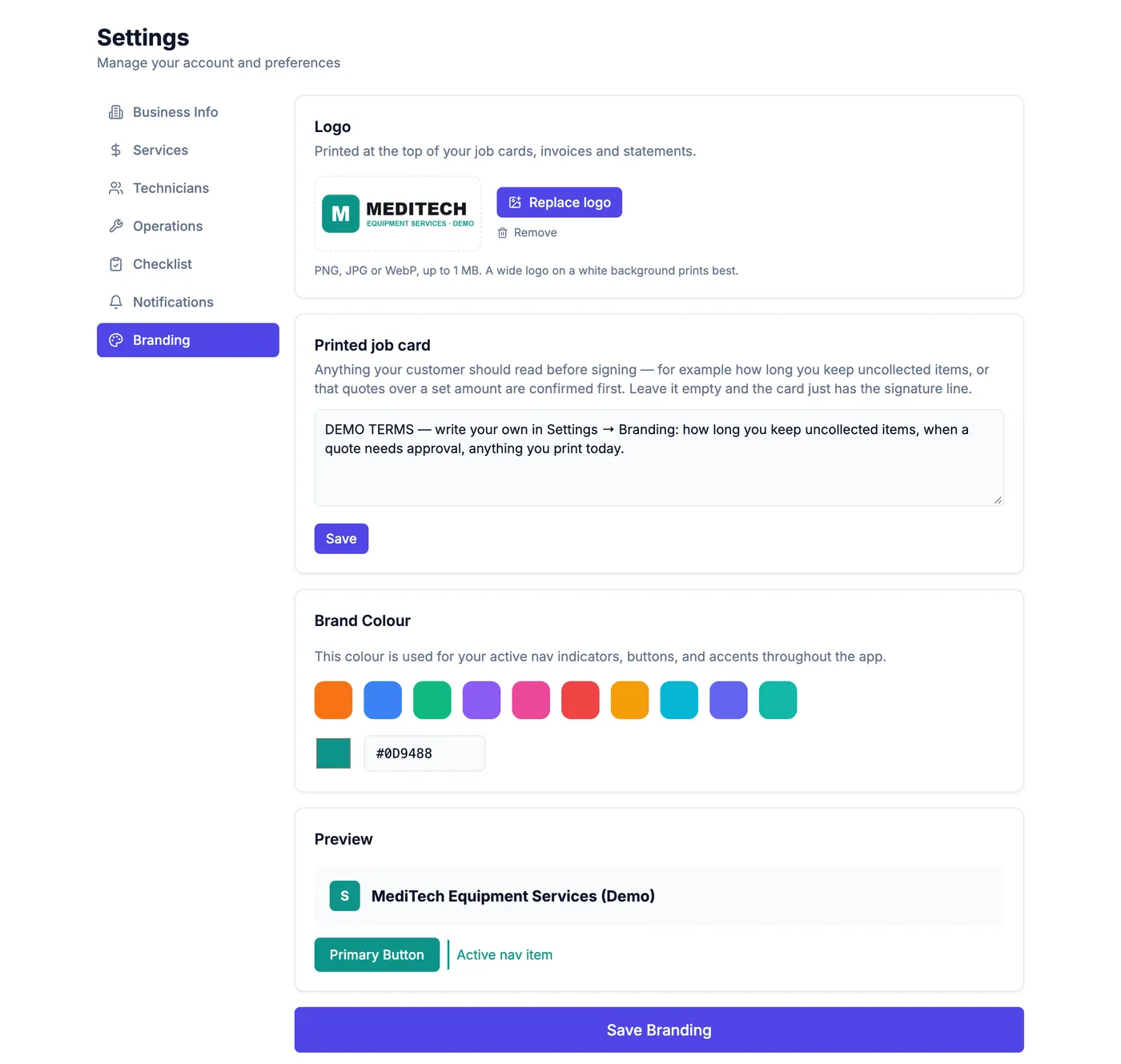
Under Settings → Branding, upload your logo and write the terms you want above the customer's signature. Your logo then appears on every printed job card, invoice and statement.
Step 3
Bring your customers across
Under Customers → Import, upload your customer list as a spreadsheet (CSV). Name first; phone, email and address are picked up if they are there. The address shows on every job and opens in Google Maps.
Step 4
Book a job in
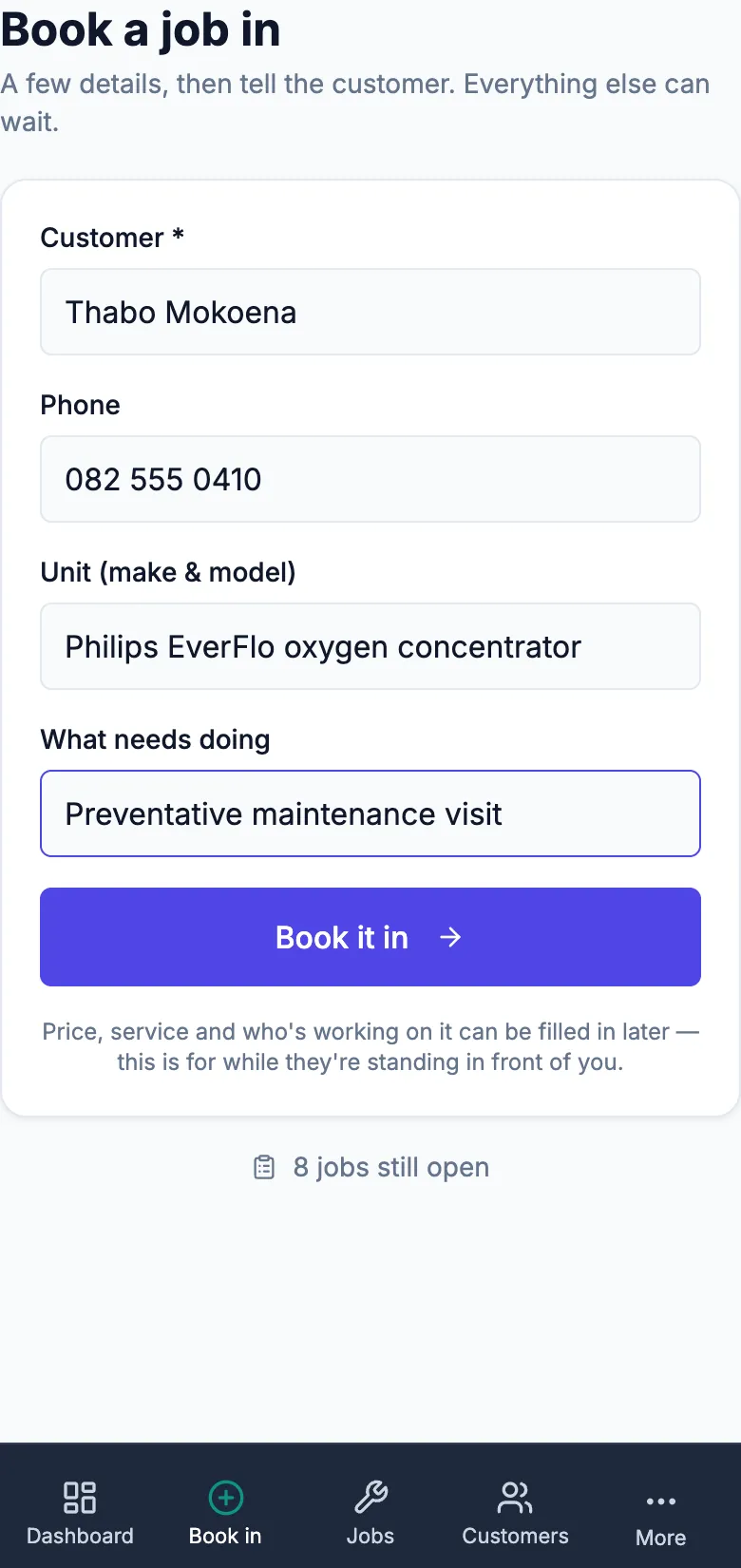
Book a job in asks for the customer, their number, the unit and what needs doing — a calibration or an oxygen concentrator service, for example. It takes under a minute, on the phone or at the desk.
Straight after, one tap opens WhatsApp from your own number with the confirmation already written.
Step 5
Print the job card
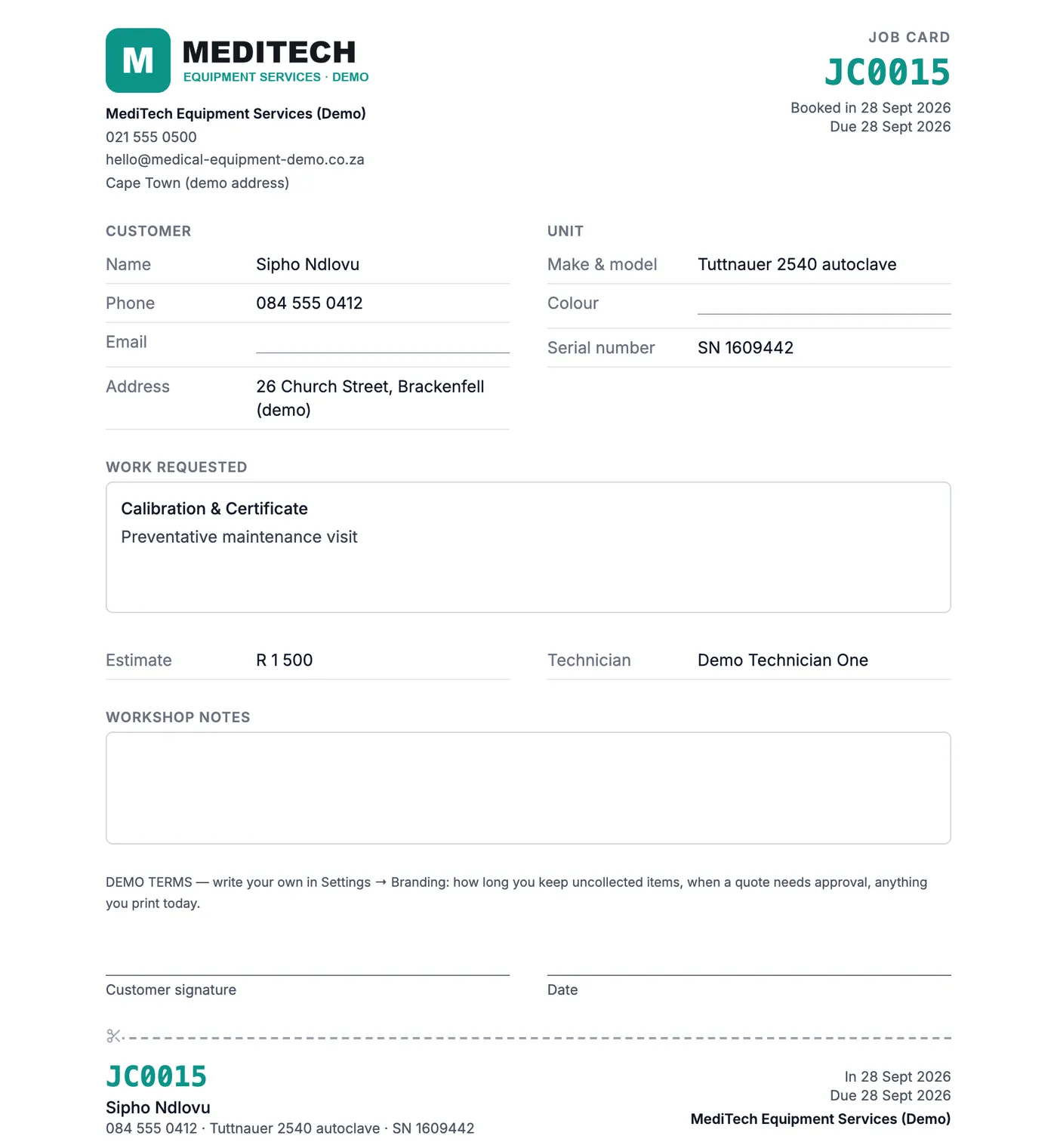
Print job card gives an A4 card with your logo, the customer, the unit (make, model and serial number), the work requested, the estimate and a signature line — with a tear-off tag carrying the job number.
Step 6
Move each job through, and tell the customer
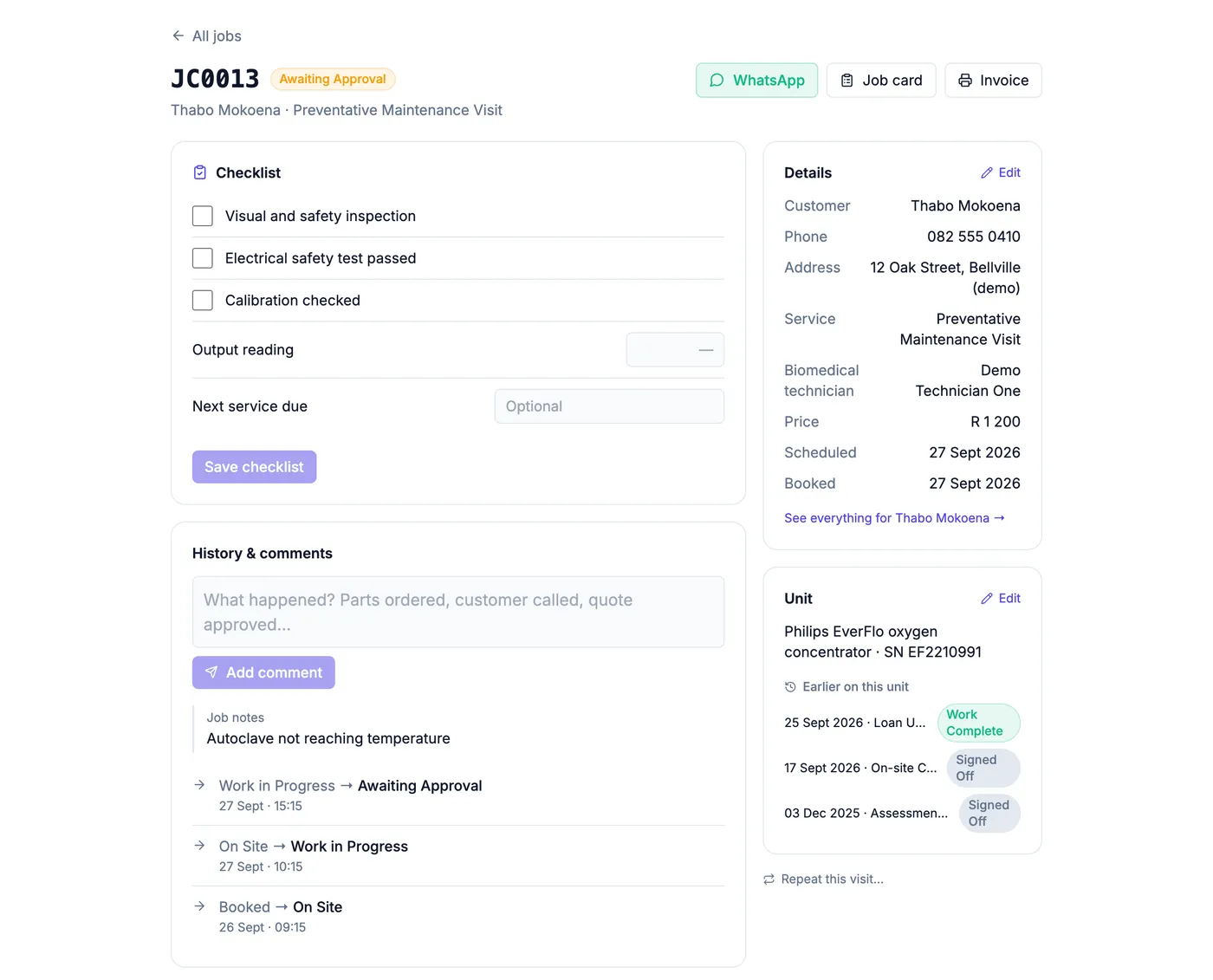
Jobs move Booked → On Site → Work in Progress → Work Complete → Signed Off, in the words your trade uses. The week view shows what is on each day; when a job is done you are offered a one-tap WhatsApp to the customer.

Step 7
Switch on the checklist
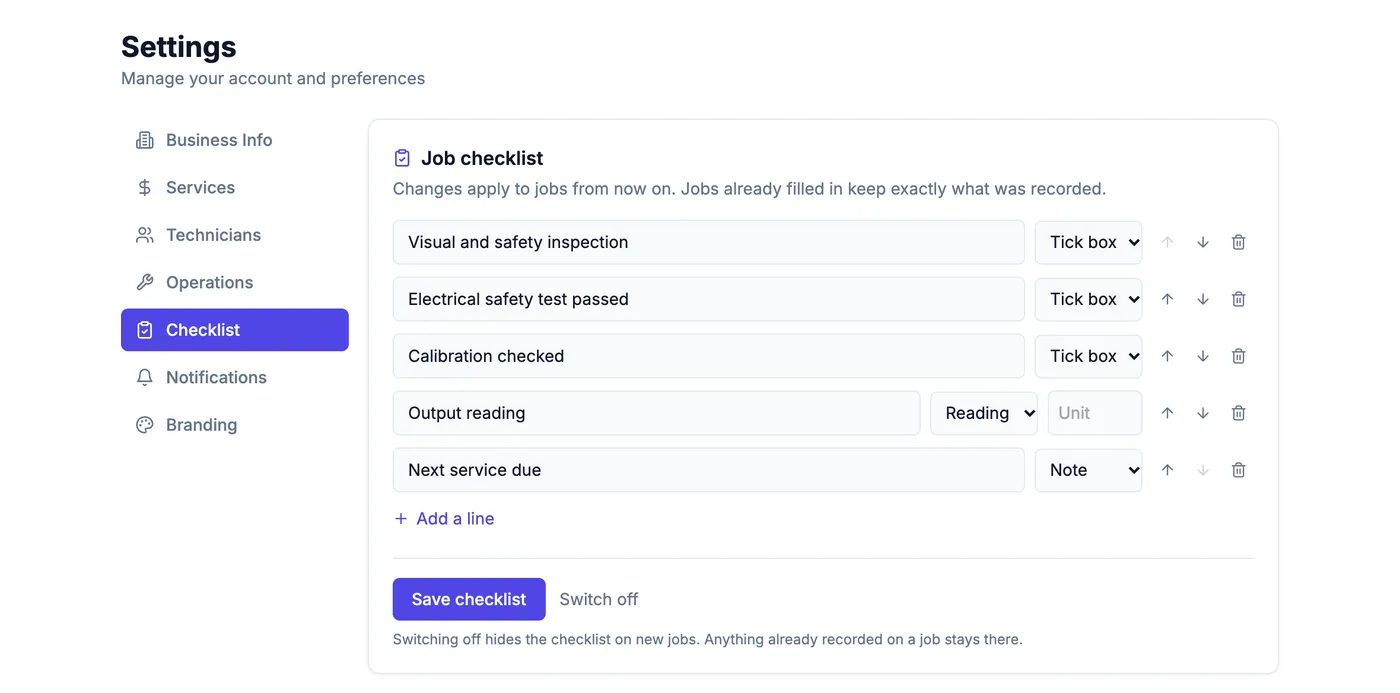
Under Settings → Checklist, switch on the Medical & Lab Equipment list — visual and safety inspection, electrical safety test passed, calibration checked and more — and record it on every job. It is saved on the job, printed on the invoice and sent to the customer in one tap.
Step 8
Set up preventative maintenance to repeat
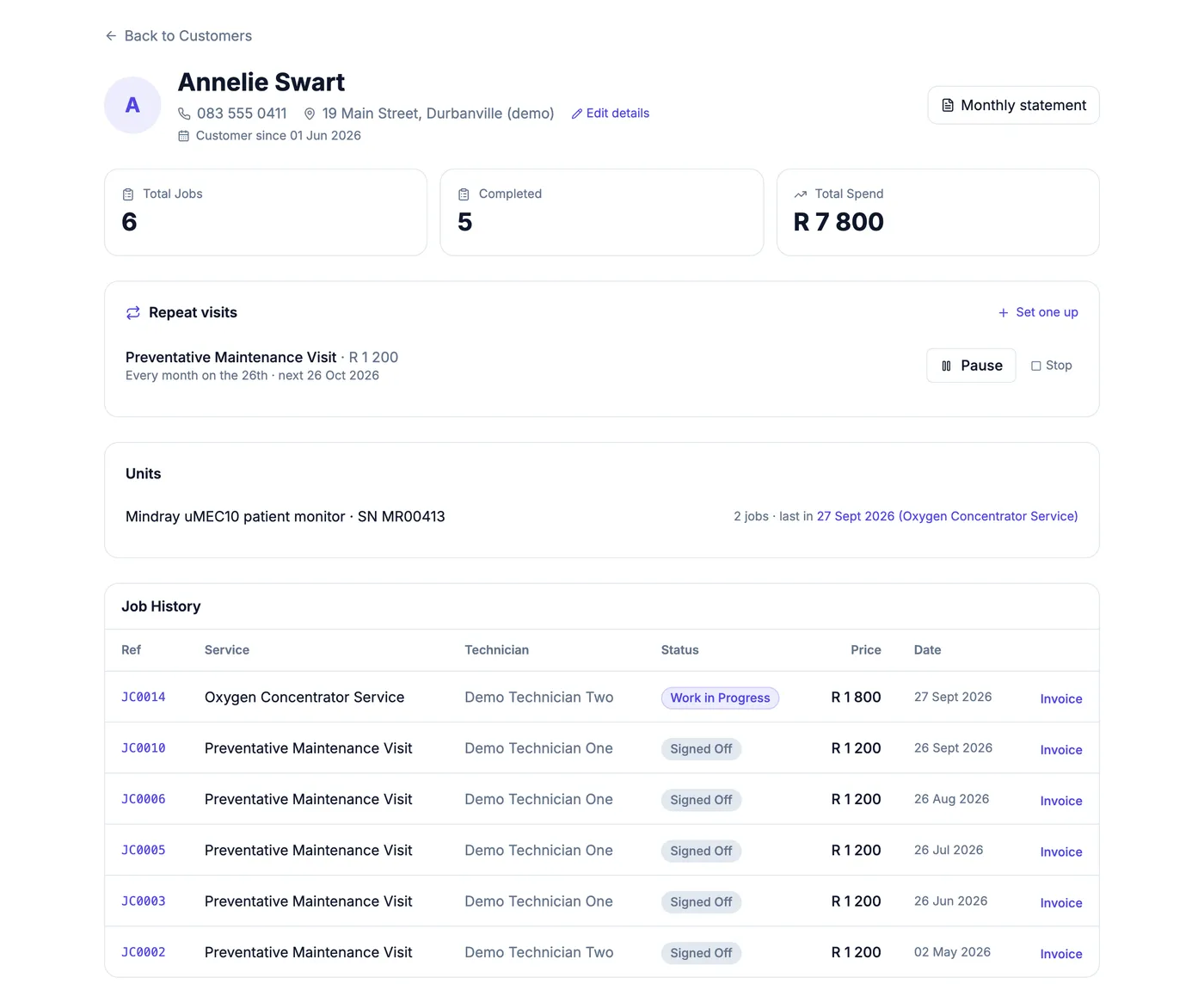
On a customer's page, set work to repeat every month, quarter or year. Each visit lands on your week by itself with the same service and price, and you can pause or stop it at any time.
Step 9
A history for every unit
Every job is kept against the unit itself. Open any job and you see everything done to that unit before; open a customer and you see each of their units and when each was last in.